Showing posts with label Gadgets. Show all posts

Tuesday, February 3, 2015

Conquering the hills of Sydney Harbor

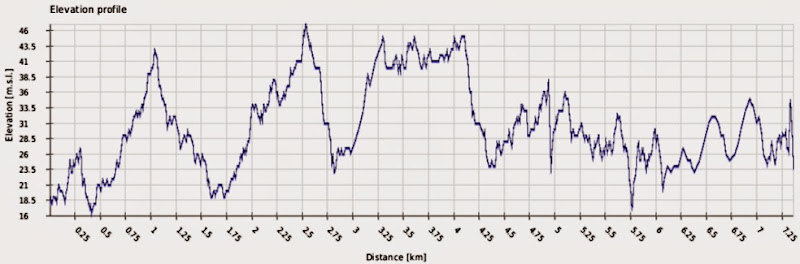
Apparently, Sydney Harbor either is riddled with hills hidden under those deceptively flat waters, or I must have slept thru a series of massive, Hollywood – worthy breakers on my recent ferry trip. What's more, even though the harbor runs directly into the ocean, it seems to be between 16 and 47 meters (52 to 154 feet) above sea level. I really must go check out that waterfall between North Head and South Head.

Also, even though this particular trip started upstream, the ferry seems to have traveled uphill, starting at 17 meters (56 feet) above sea level, and finishing at 23 meters (75 feet).

Conclusion: I'm not sure I can really trust the GPS module of my Nexus 5.

Elevation profile
Elevation profile from GPS log of ferry trip, as recorded on my Nexus 5. Recording started and ended on ferry, no on-shore traveling

Sunday, February 1, 2015

Sydney Harbor - High above the sea

Sydney Harbor … now 34 meters above sea level.

GPS Screenshot

Wednesday, November 12, 2014

Adios Telstra

After recently discussing my first impression of the Optus experience, it's only fair to also share the final moments of my relationship with Telstra.

As mentioned before, the Telstra account becomes inactive the moment you transfer your phone number to another carrier. Once this happens, your online Telstra profile will only say "No active account for this profile", with no option to access pending bills, usage data, or any other details.

Unlike the Optus Life Chat, which is prominently advertised and even (annoyingly) pops up whenever you linger on any given Optus web page for a while, the Telstra chat thingy is well hidden. It takes a fair bit of navigating thru the Support pages before you eventually arrive at a Contact Us page that actually lets you pick the Life Chat feature.

The one positive thing about the Optus chat was that in all instances, I was connected to a consultant almost instantly. Not so here; the Telstra chat window informs me that I'm currently number 24 in the queue. Definitely not a promising start.

It takes approximately 15 minutes to make it to the front of the queue; then, I'm greeted by Joan (and yes, I almost did reply "Watson, is that you?"). Joan quickly sends me a link to their Pay a bill page, where you apparently can make payments even after your Telstra account has been deactivated. After I inquire about access to the actual bill details, Joan offers to send a copy of the bill to my email address.

I submit the payment while I'm still online with Joan (just in case it doesn't work; this is Telstra, after all). But I need not worry, the payment actually goes thru quite smoothly; it seems they at least have the parts needed to take our money running well.

The actual support chat took about 5 minutes; plus the 15 minutes I waited in the queue.

So, this time, the support staff turned out to be the best performing part of the system.

Suggestion to Telstra: When an inactive account still has a balance that's not zero, include a link to that Pay a bill page on the online account landing page.

And now I'm done. Hasta la vista, Telstra.

Tuesday, November 11, 2014

The Optus experience - summary

As regular readers might have picked up, I've switched my mobile phone to Optus Prepaid. It's been a somewhat bumpy ride with cunningly hidden information, well-meaning but mostly clueless customer service staff, and the inevitable spam. If you have the time to read it all, please do:


To sum up:

What
Optus My Prepaid daily
  • Prepaid semi-flat rate plan based on daily usage. The first outgoing standard national call, SMS, MMS, or data use triggers the basic daily rate of $ 1.00. After 30 mins of talk, or 40 MB of data, that daily rate automatically jumps to $ 1.50, giving you unlimited talk, and another 40 MB of data (SMS / MMS are unlimited with the intial $ 1.00).

  • Once the extra 40 MB are also used up, increments of $ 0.50 / 50 MB are added, up to a total of $ 5.00 for the day. After that, you can obtain additional data blocks at $ 2.00 / 200 MB and $ 5.00 / 500 MB, but you must actively purchase them, they're not automatically added, so you keep in control of just how much you spend.

  • Non – standard items like international messaging, international calls, etc, are charged by the item.

  • If you use a lot of data, you might wanna look at My Prepaid Daily Plus, where the initial flat rate of $ 2.00 gives you 500 MB (as well as unlimited standard national calls), and another $ 2.00 adds an extra 524 MB, leaving you with 1 GB for $ 4.00, plus all the national voice calls, SMS, and MMS you want.

The Good
  • The plan itself seems to suit my particular usage pattern; days with no use whatsoever (yes, that happens) won't cost me anything, the daily cost for standard national stuff (talk, messages, a little data) seems acceptable, international rates seem surprisingly reasonable, and roaming, although expensive, is available if necessary.

  • The web site is easy to use, most (but not all) information can be found without too much trouble, support (although not always helpful) is easily available via the prominent Live Chat feature.

  • Sales assistant at the Parramatta store is friendly efficient, and at least to some degree, seems to know what she's doing

  • Once set up, the service works as expected

  • Online account provides a good overview of the account status, credit, usage, as well as easy access to account settings and extras

  • Account status info via basic text message (that therefore works on even the oldest of phones) provides comprehensive summary of current usage, credit, and remaining talk / data

The Bad
  • Roaming rates are obscenely expensive

  • Although the plan boasts a 6 months expiry of credit, it turns out that in order to keep the service active, the account must actually be recharged at least 30 days before credit expires

  • Some information is more difficult to find than necessary. Some relevant parts are not directly linked from the product page

  • After the plan has been set up and activated, the online account to actually manage your plan must be set up separately

  • Online account does not show data usage

  • No mention of, or reference to, the settings required for MMS. You have to find your own way to the page where you can request these settings to be sent to your phone. Go to Support, search for MMS settings. That brings up (at least at the time I'm writing this) the APNS & technical settings. This page lists all the settings you could ever want, and also provides a link to the online tool where you can select the make and model of your phone and have the settings you're after sent to your device. As a side note; the settings page warns, under the details for streaming, that videos and TV can use large amounts of data, and advises to "monitor your usage thru My Account - where, as stated above, the MB usage is not listed!

  • Usage details not available as csv file (print (to any printer, including PDF) is available)

The downright ugly
The extent of complete and utter incompetence and indifference you're likely to encounter both face to face (Merrylands shop, I'm talking about you) and via the Live Chat support channel is something to behold. Be prepared that perfectly ordinary questions that one would expect to be part of those people's everyday work are probably going to be met with an absolute inability to even point you in the right direction. If you ever need to explain the term "Stunned Mullet to someone, just take them to an Optus store, ask the staff a simple question, and observe.

The end
So there you have it. A product that's appealing enough to lure me away from Telstra; a relatively smooth transition; some extremely useless customer service staff spoiling the, well, customer experience somewhat; and some serious doubts about Optus' hiring policies.

Sunday, November 9, 2014

The Optus experience – Part 3: First steps

So, with my new Optus prepaid SIM active, I should be good to go. And sure enough, a series of Optus system messages arrive, some just to remind me what I've just bought (hey, a customer with poor memory is still a customer), some with actual information like voice mail PIN, etc.

Signal strength is good. I do notice that with Optus, the phone does not display the cell tower information, even when the relevant option in the phone is turned on.

Sending a text message (to an international number) works like a charm. Sending an MMS … not so much. I vaguely remember that when I got a new phone, Telstra had to send phone-specific settings to my device to make it work. At first glance, I can't find an "obvious" hint on the Optus website how to set this up, but since I have stuff to do and places to go, this needs to wait for now.

In-store support
So far, things haven't gone too badly, and so when I come across another Optus store (this time in Merrylands), I decide to try my luck. As before, a friendly sales chick quickly inquires how she can help me, but then, it's all downhill from there. I explain the issue to her, and the look on her face, one of utter perplexity and incomprehension, is something to behold. She couldn't have been more stumped if I'd asked her to fix Richie Branson's Virgin Galactic space vehicle. Except, unlike fixing experimental space ships, knowing stuff about mobile phones, especially when it comes to Optus – specific details, is (supposedly) part of her job. Once life returns to her blank stare, she plays around with the phone's settings while mumbling something about "internet settings must be on" (for MMS? Huh?). Meanwhile her very obvious "I can't be bothered to even pretend to give a shit" attitude only completes the picture of absolute, unmitigated incompetence. Eventually, she gives up, handing me the number of the Optus helpline.

In any case, I later find what looks like an answer to the issue in the Optus support section (after a bit of searching around). Under Setup via internet, you will find a link to the online tool, where you can pick your phone (make and model), and then can select the service you need the settings for (to set up multiple services, repeat as required). After completing the online form, my PIN is displayed, and after a couple of seconds, my phone receives a system text message. Press "Save", enter the PIN, and the phone is set up for the selected service (MMS, internet, WAP, etc).

Subsequently, sending my test MMS (to international number) works without a glitch.

While my phone is now set up as required, the question remains: How can Optus frontline staff possibly not know basic stuff like "your phone needs MMS settings sent by us, let me help you do that?"

Mobile data
Once the Optus config settings for internet access have been sent to the phone, said internet access works well. Speed isn't too impressive; but this is Australia, and given that even our broadband performance is usually listed under in the jokes section of overseas (and domestic) tech mags, this doesn't come as a surprise.

Account admin
To manage your account online, you first have to, well, set up your online account. Contrary to my (perhaps unrealistic) expectations, this does not happen automatically when the friendly Optus store assistant sets up your mobile account.

Once the account is set up, the friendly Login button on the Optus homepage takes you straight to the Login screen (whoda thunk?)

The account dashboard gives a good overview of your activities, as well as quick access to settings, options, extras, etc. It also displays the remaining credit, and of course provides a button to recharge your account.

It is noteworthy that under the convenient Your spend today heading, only the applicable daily level, triggered by outgoing national calls, outgoing national SMS / MMS, or mobile data use, is listed. Items that are charged separately, such as international calls, international messaging, etc, are listed under the Usage details tab. The remaining credit displayed in the summary still takes those separate items into account, though.

The usage details page faithfully lists all activities, both actual use and "technical" events like "Update service" (I'm sure that means something) etc. There's also not as much detail as there could be. All user activities come with a Duration, which for SMS / MMS etc always shows 00:00:00. More concerning, though, is the fact that this Duration info also extends to mobile data items, and not only does it show 00:00:00 instead of the actual duration of the network connection, it also takes up perfectly good space where useful information, such as usage (MB) could be displayed.

The data usage information is indeed nowhere to be found. With low expectations, I try the Live Chat again. Kat, the friendly customer service person listens to my query, then asks me to click on various items. Yes, clicking the item in the usage list does expand the row, but that doesn't reveal the MB usage either. It also becomes clear that the customer service chick isn't looking at the actual screen; if she was, there would be no need for her extensive Please click [something], let's see what happens approach. Eventually, she informs me that the usage "used to be displayed, but has been removed, as IT is working on an upgrade of this page". Of course, upgrades in progress do require the removal of features from the current version! I'm sure there's a universe somewhere where that makes sense.

Kat then offers me to look up the requested information for me, and comes back with how many MB I used during my test the day before. Helpful, but considering that the entire chat has taken about 25 minutes, not really a feasible alternative on a regular basis.

Still on the usage details, another missing feature is downloading the usage data as a cvs file. I must admit that while the Telstra service and products were bad enough to eventually drive me to Optus, their detailed cvs files have been a great help in analyzing my usage pattern.

Account tracking via SMS
When you're away from the interweb and want to quickly check your spending and usage via a good old text message, you can do that, too. There's a range of requests you can text to 9999, but perhaps the most comprehensive option is 1 (yes, just text the number 1 to 9999). Within seconds, you receive a text informing you of your current flat rate level, remaining data quota, remaining talk time, etc. That also means that while your online account won't show your data usage, you can track it via these text messages. You just have to do it on the day, as 9999 provides the current status for the day, no history data.
Previous: Signing up Next: The spam

Saturday, November 8, 2014

The Optus experience – Part 2: Signing up

So, after studying the prices and conditions of the services I'm likely to use most, and after comparing my mobile usage of the past 12 months between my existing plan and this Optus Prepaid Daily plan, I decide to give said Optus plan a go.

There's of course a convenient Buy Now button on the website; but I decide to go old school and do it at the physical shop. That way, I get my SIM straight away, as opposed to sometime between now and the next Melbourne Cup; someone in the store might even be able to clarify the stuff I couldn't find any information about, like the finer points of roaming etc; and the Optus staff can probably do the transfer of my existing phone number from Telstra, too.

So, off to the Optus store in Parramatta, where a sales chick is actually able to clarify some questions regarding roaming (sending MMS from overseas is $ 1.00 per message; roaming can't be disabled, mobile data roaming can't be disabled (must disable mobile data in phone)). However, I later find out that not all her very convincingly presented information is correct; once you have an active account, you actually can disable roaming via the web in the Settings section.

In any case, the actual sign-up process is quick and painless. The friendly shop assistant sets up my account, transfers my number from Telstra in the process, takes my money, and hands me the SIM. Then, she cheerfully informs me that my shiny new Optus SIM will be activated "within 4 hours". Since the old account (in my case Telstra) goes dead pretty much the moment the number is being transferred, this potentially leaves you with a communications black hole for a couple of hours. Definitely something to consider when planning the move from one carrier to another.

In my case, my phone gets an Optus signal after approximately 2 hours. My next post will outline how things go from there.

Previous: Research Next: First steps

Friday, November 7, 2014

The Optus experience - Part 1: Research

I've been looking into the Optus Prepaid Daily" mobile plan. As a very light user, this plan, with a 6 months expiry on credit (as opposed to 30 days with most other plans) and overall reasonable rates, seems to be the right product for me.

Navigating around the Optus website is mostly straight forward; you'll find the product you're after fairly quickly. The basic information regarding voice calls, messaging, and data use within Australia is clearly spelled out. Other items, such as international rates, are listed "somewhere else".

International call rates are easy enough to find. International messaging (SMS / MMS), however, is a different story. No price, no hint as where to find it, not even a link along the lines of "click here for more prices".

With roaming, it's a similar story. It starts out promising enough, with a "see our prepaid roaming rates" link on the product page taking you directly to the, well, roaming page. That's as straight forward as it can be, I give you that (ok, listing the link under the heading Low roaming rates constitutes a blatant lie, but that's a different story).

On the roaming page, you pick the relevant country, and a pop-up window gives you all the rates – well, sort of. The price for MMS to AU number is listed as Standard national MMS rate for your plan. Huh? Under the prepaid plan in question, I get unlimited (national) MMS (and SMS) messages once the daily $ 1.00 has been triggered. Does that mean I can send unlimited MMS to Australian numbers for $ 1.00 per day while I'm overseas? Considering that SMS to AU number is listed at $ 0.50 per message, I find that highly unlikely.

At this stage, I naively decide to give the Optus live chat feature that's so heavily promoted thruout the site a go. Blake, the friendly Optus Sales Consultant, responds quickly, but it's all downhill from there (I should have been warned when he introduced himself as a "consultant"). I put the question regarding SMS / MMS to international numbers to him, and he says he'll be "right with me". What follows are a series of "Thank you for waiting. I'll be right with you" messages (presumably automated), and then … Blake is gone! Disconnected.

Back on the product site, at the very bottom, is the infamous small print. Well, some of it. And among that small print, a link to the Critical Information Summary" (CIS) indicates that all might not be lost after all. The link takes you to the CIS library, rather than to the document that actually applies to the product, and you'll have to find your own way to the document (PDF) that applies to the product of your choice.

Once you have found the relevant CIS, you are rewarded with most of the information you've been looking for. It's all listed right there; non-standard call rates (directory, video calls, premium messages, etc), and International Messaging rates.

The CIS seems to be a pretty comprehensive source of information. It's mind-boggling that it doesn't occur to an Optus sales rep to at least look it up and see if it might answer the questions of the customer they're "helping".

On a side note, the CIS also states that while your credit on the Prepaid Daily plan expires after 6 months, you must recharge at least 30 days before expiry in order to keep the service active. That's not mentioned anywhere on the shiny product page, where the (supposedly) low rates and the long expiration period are advertised. Sneaky bastards!

Despite all this, I decide to go ahead. Read about actually signing up here.

Monday, March 3, 2014

What to do

A couple of weeks ago, my DVR went from highly unreliable to completely useless, but miraculously came back to life after some serious pretend-repairing and looking at it very sternly.

Now, the unit's remote control has followed the recorder's example and, after a few days of constantly deteriorating performance, is now refusing to work at all. No amount of feeding it posh top-brand batteries with fancy words like performance and extreme in the name, gently stroking the buttons, creating an intimate atmosphere by holding the bloody thing really close to the recorder, or waving a stick at it while shouting "Remotus Reparo" seems to coax it back to life.

To make matters worse, the recorder itself features only the most basic set of controls. There's the Power button, a pair of buttons to change the TV channels (up / down), and volume control. That's it. So, without a working remote, it's possible to watch live TV via the recorder, but setting up new recordings, or accessing any of the recorded content, is out of the question.

So, there's the option to buy a new remote control. That's AUD 50 (or thereabouts) on an accessory for a fairly old-ish DVR that, while it's essentially working again, hasn't been quite the same since that near death experience (channel changes take about 4 times as much time as they did originally, and a few channels can no longer be recorded properly), and may die for good any day.

Or I take the hint and spend money on a brand new recorder, probably from a more reliable manufacturer, consigning ye olde Topfield to the council's next available bulk garbage collection, all because of that pesky remote.

What to do, what to do … I'm open to suggestions.

Sunday, January 26, 2014

Fixing a Topfield PVR

How to fix the Topfield TF7100HDPVRt – sort of.

According to the internet, this Topfield model is prone to malfunctions, and my unit is no exception. Granted, it was working mostly fine for a couple of years, with only the occasional glitch stuffing up a recording or so. But lately, things started to come apart hard and fast, with symptoms ranging from random freezing or re-booting during live TV, recording, or playing back recorded programs to hanging (and freezing) during the start-up process.

The same internet that assures me that these are common issues with this model also informs me that there's no reliable cure; and worse, no Topfield customer service that deserves to be called that, at least not in Australia.

With my machine, it started with the occasional crash, escalated to frequent refusal to start up at all, and eventually got to the point where the machine wouldn't boot, ever, without exception.

Considering that things couldn't possibly get any worse, I had the brilliant idea of "having a look at it" myself. Granted, I'm hopeless with mechanical stuff (of which a PVR has none, unless you count the read/write head of the hard drive, or the control buttons on the front panel), and even worse with electronic components. But no matter; perhaps it's as simple as dust buildup interfering with the delicate interiors; after all, the casing is littered with holes (presumably to prevent the thing from overheating).

Anyway, with all that in mind, I got to work:

1) Remove power cord, unplug RF (aerial), HDMI cables, and anything else you might have connected.

2) Unscrew all screws (1 on each side, and heaps at the back)

3) Make sure there's no one else in the room with you. If you're as technically challenged as I am, you're likely to look like a tool, and there's no need for anyone to see that.

4) Slide off the case

5) Notice that the interior of the recorder, the motherboard, and all other components, are surprisingly clean and dust-free

6) Check the hard disk connector. No, it's absolutely firm; no wobbly plug, not a chance of a bad connection

7) Switch on your best I know what I'm doing look and stare at all the components.

8) Connect power cord (and plug it in, duh)

9) Press Power button

10) Observe display at front of unit

11) After a few breathless moments, the word run (which indicates that the machine is booting) disappears, and the name of the last used TV station appears

12) This indicates we've come further than we did in any recent attempts to start the machine. Leave the recorder on for a while, just to be sure

13) Press Power button to turn recorder off, wait for shutdown procedure to complete

14) Unplug power cord

15) Re-attach cover (it's a tight fit), screw all the screws back in

16) Connect recorder to RF outlet and TV

17) Connect, and plug in, power cord

18) Start up the recorder, closely observe boot progress

19) Enjoy your working Topfield recorder, record shows, and finally watch all the stuff you had recorded ages ago but haven't been able to watch yet.

Summary
Yes, it's slightly more complex than Turning it off and turning it on again, but not by much. How simply opening the bloody thing, looking at it very seriously, and closing it again actually resolved the issue may forever remain a mystery, but at least for now, it seems to have worked.


Inside the Topfield TF7100HDPVRT


Saturday, May 29, 2010

Overrated

This morning, I had the opportunity to play with the much hyped Apple iPad. Well, it definitely looks cool; the screen seems to be alright (browsed a book and was quite surprised by the quality of the text display); and at least with the basic applications the demo model had set up, performance was pretty good.

For some tasks, though, the simplicity of the gadget is, more than anything, a bit of a drawback. Even just typing short texts, like a web address or a search term, is quite an uncomfortable matter on that virtual keyboard. And for some tasks, there's just no alternative to actually having a physical mouse. Good luck trying to accurately zoom in and out of GoogleMaps.

Add to that the total control of the Apple Nazis over what applications you can and can't run, the ridiculously excessive price, and the total lack of even the most basic interfaces, and you can probably guess my verdict (just in case you missed the title of this post).